NFS File System
What is NFS?
The NFS (Network File System) is a file system protocol that allows you to access files over a network as if they were stored locally on your own machine.Port 2049 This is the default port for NFS itself (both TCP and UDP).
Basic Understanding:
-
Purpose: NFS allows computers to share files and directories across a network. For example, a file stored on one computer can be accessed and edited by another computer in the same network, even though the file is physically located on the first computer.
-
How it Works:
- A NFS server shares specific directories or files over the network.
- A NFS client can then mount the shared file systems and access them as though they are part of the local file system.
This happens using the NFS protocol, which defines how file access requests are made and how the server responds.
key advantages of using NFS (Network File System):
1. Centralized File Management:
- NFS allows you to centralize file storage on a single server, making it easier to manage, back up, and secure files. Users can access these files across multiple systems without needing local copies.
2. Cross-Platform Compatibility:
- NFS is supported by a variety of operating systems, including Linux, Unix, Mac OS, and even Windows (via third-party software). This makes it a versatile solution for environments with mixed OSes.
3. Seamless File Sharing:
- NFS allows remote systems to access files over a network as though they are local. This creates a seamless user experience, where networked file access is similar to working on files stored locally.
4. Ease of Setup:
- Setting up NFS is straightforward and does not require much configuration. Once the NFS server is set up and the shared directories are exported, clients can easily mount them, often with a single command.
5. Efficient Performance:
- NFS is highly efficient for accessing and transferring files across a network. It supports caching and file locking mechanisms, making it a fast and
Basic NFS Example:
- On the server: The NFS server shares a directory.
sudo exportfs /shared/folder
2.On the client: The client mounts the shared directory.
sudo mount -t nfs server_ip:/shared/folder /mnt
NFS Server Configuration
Step 1: Install Required Packages on Server Node
Install the required NFS and rpcbind packages on the server.
sudo yum install nfs-utils rpcbind
Check the status of the NFS server.
systemctl status nfs-server
If it's not running, restart the service.
systemctl restart nfs-server
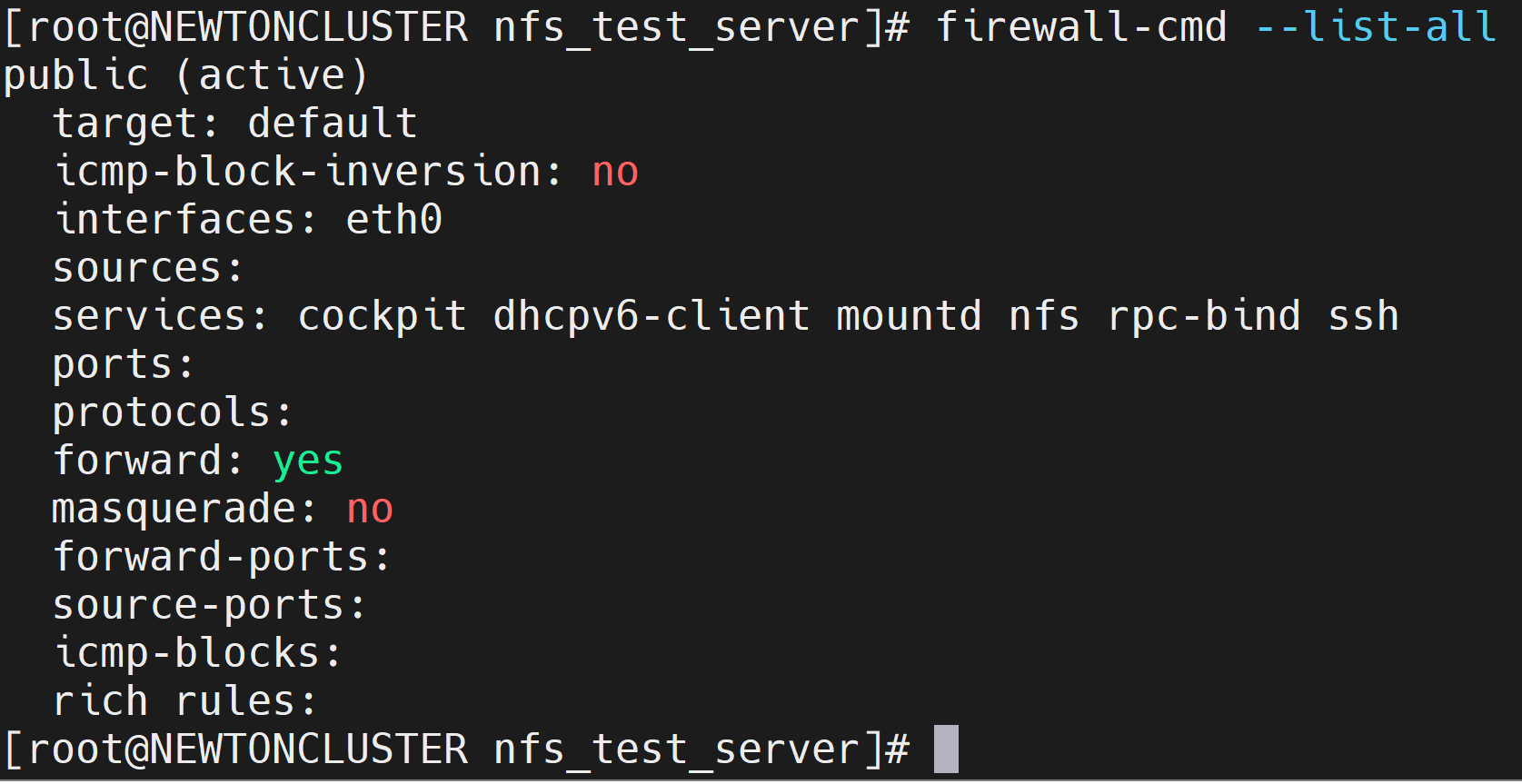
Step 2: Check the Firewall Service
Check the status of the firewall.
systemctl status firewalld.service
Stop the firewall if it's not required.
systemctl stop firewalld.service
Alternatively, if the firewall service must remain enabled, add the necessary services and enable the required port numbers.
Step 3: Create the Directory to Share Across the Network
Create the directory that you want to share.
mkdir /directory_which_is_to_be_shared
Change the ownership of the directory.
chown nfsnobody:nfsnobody /directory_which_is_to_be_shared

If necessary, change the directory permissions.
chmod 755 /directory_which_is_to_be_shared
Step 4: Add Shared Directory Information in /etc/exports
Edit the /etc/exports file to add the directories you wish to share.
/directory_which_is_to_be_shared ip_address_of_network(rw,sync,no_root_squash)
/directory_which_is_to_be_shared ip_address_of_client_machine(rw,sync,no_root_squash)


Step 5: Verify Export Values
Check and verify the export values with the following commands:
exportfs -a
exportfs -r
exportfs -v
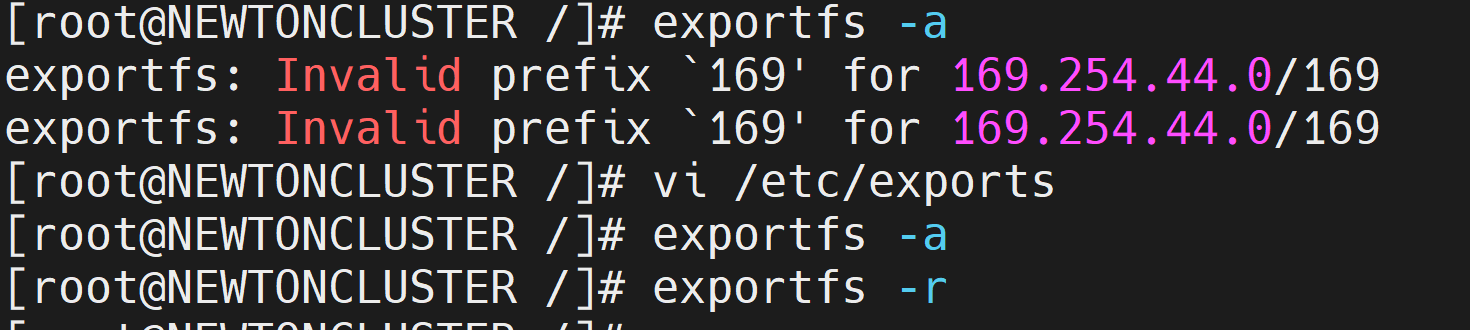 Everything is good! Now we need to configure the NFS client.
NFS Client Configuration
Step 6: Check Network Connectivity to the NFS Server
Ensure the network is reachable from the NFS client machine to the NFS server.
You can use the ping command to check connectivity.
ping ip_address_of_nfs_server
Check the firewall rules and enable the required ports if necessary.
Step 7: Create a Mount Directory
Create the directory where the NFS share will be mounted on the client machine.
mkdir /mnt/nfs_mount

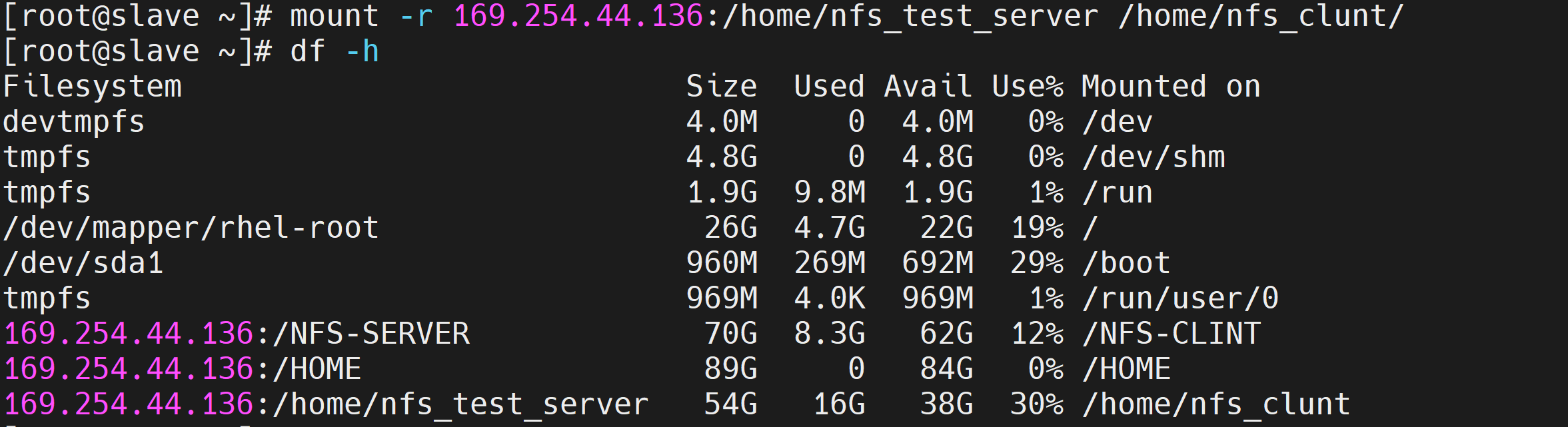
Step 8: Mount the NFS Share
Mount the NFS share from the server to the client.
mount ip_address_of_nfs_server:/directory_which_is_to_be_shared /mnt/nfs_mount
Step 9: Permanent Mount After Reboot
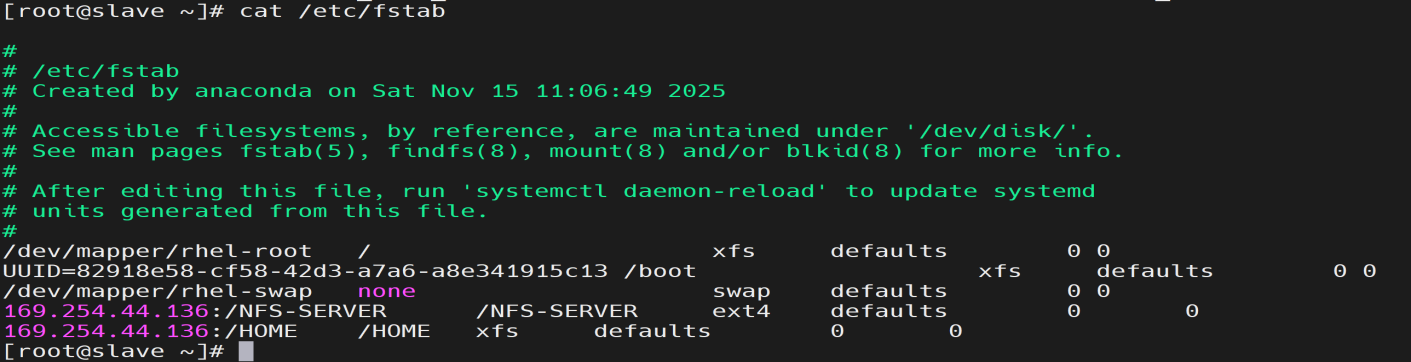
To make the NFS mount persistent across reboots, add the NFS server details in the /etc/fstab file.
Edit /etc/fstab and add the following line:
ip_address_of_nfs_server:/directory_which_is_to_be_shared /mnt/nfs_mount nfs defaults 0 0
Step 10: Verify the Mount
Check if the NFS mount is successful.
mount | grep nfs
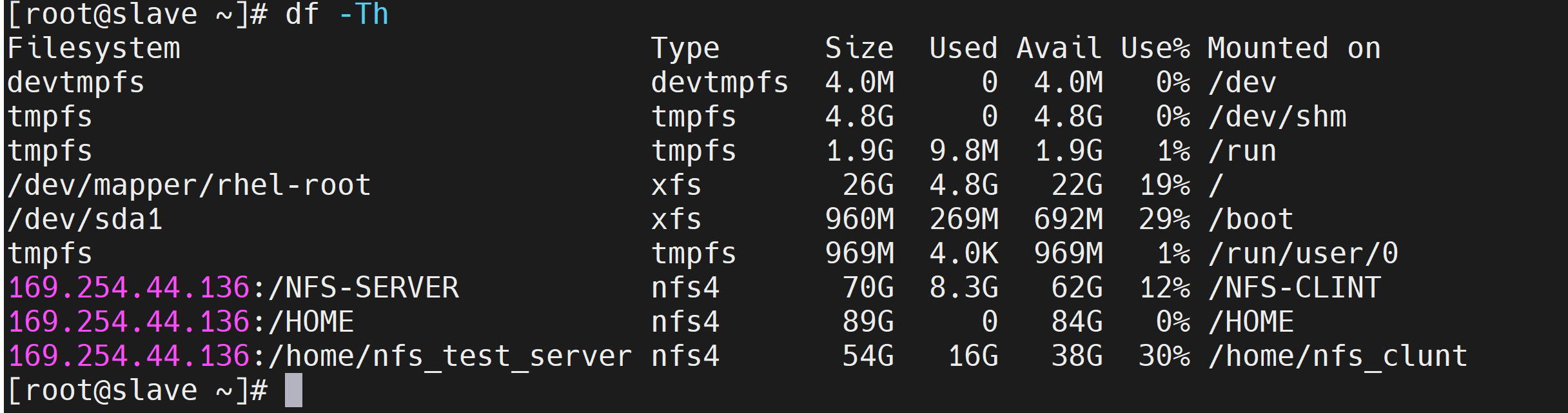
Alternatively, use the df -h command to verify the mounted file systems.
df -h