KDE Plasma Workspaces Installation Guide
Overview
This guide documents the complete installation process of KDE Plasma Workspaces and base-x graphics environment on Rocky Linux 8. The installation includes all necessary dependencies, display managers, and supporting applications.
System Information
- Operating System: Rocky Linux 8 (Green Obsidian)
- Release: 8.10
- Architecture: x86_64
- Environment: Virtual machine (VMware)
Installation Prerequisites
Before beginning the KDE Plasma installation, ensure your system meets the following requirements:
- Rocky Linux 8 with internet connectivity
- Sufficient disk space (minimum 3GB for Plasma components)
- Root or sudo access
- Active repository access (BaseOS, AppStream, Extras, PowerTools)
Installation Steps
Step 1: Install EPEL Release Repository
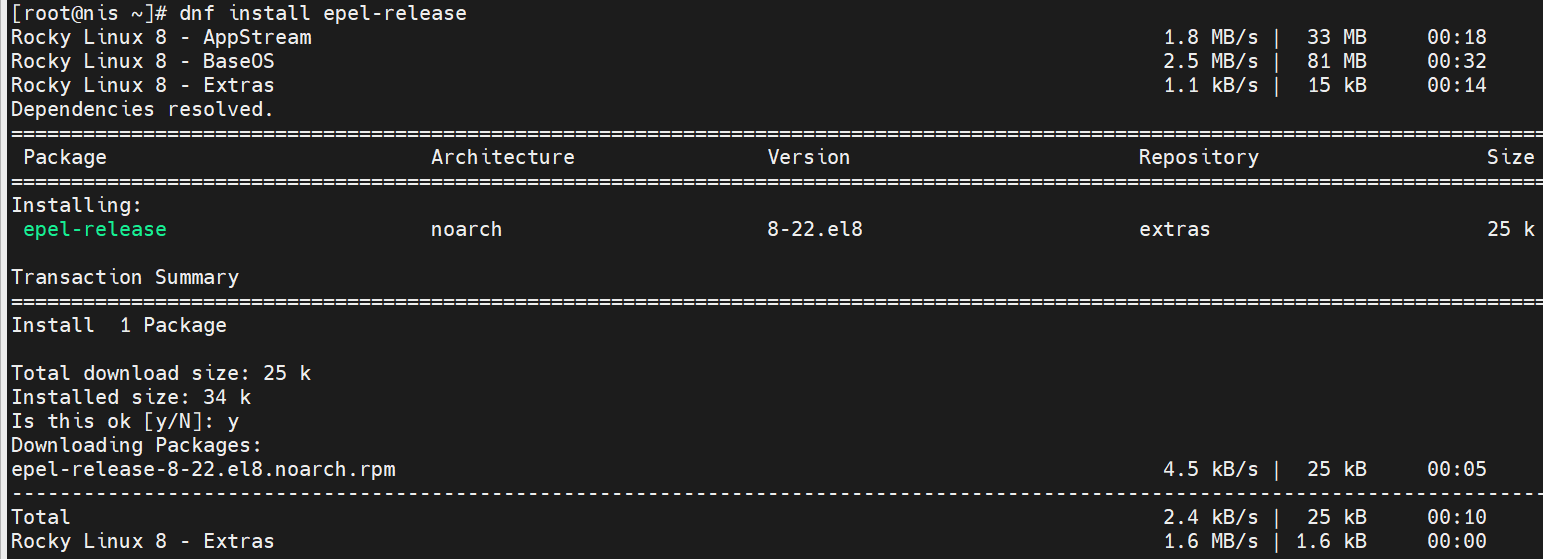
First, install the Extra Packages for Enterprise Linux (EPEL) repository to access additional packages:
dnf install epel-release
This installs version 8-22.el8 from the extras repository.
Installation Log:
Step 2: Enable PowerTools Repository
The PowerTools repository provides additional build tools and development packages required for KDE Plasma:
dnf config-manager --set-enabled powertools
Configuration Log:

Step 3: Install KDE Plasma Workspaces and Base-X
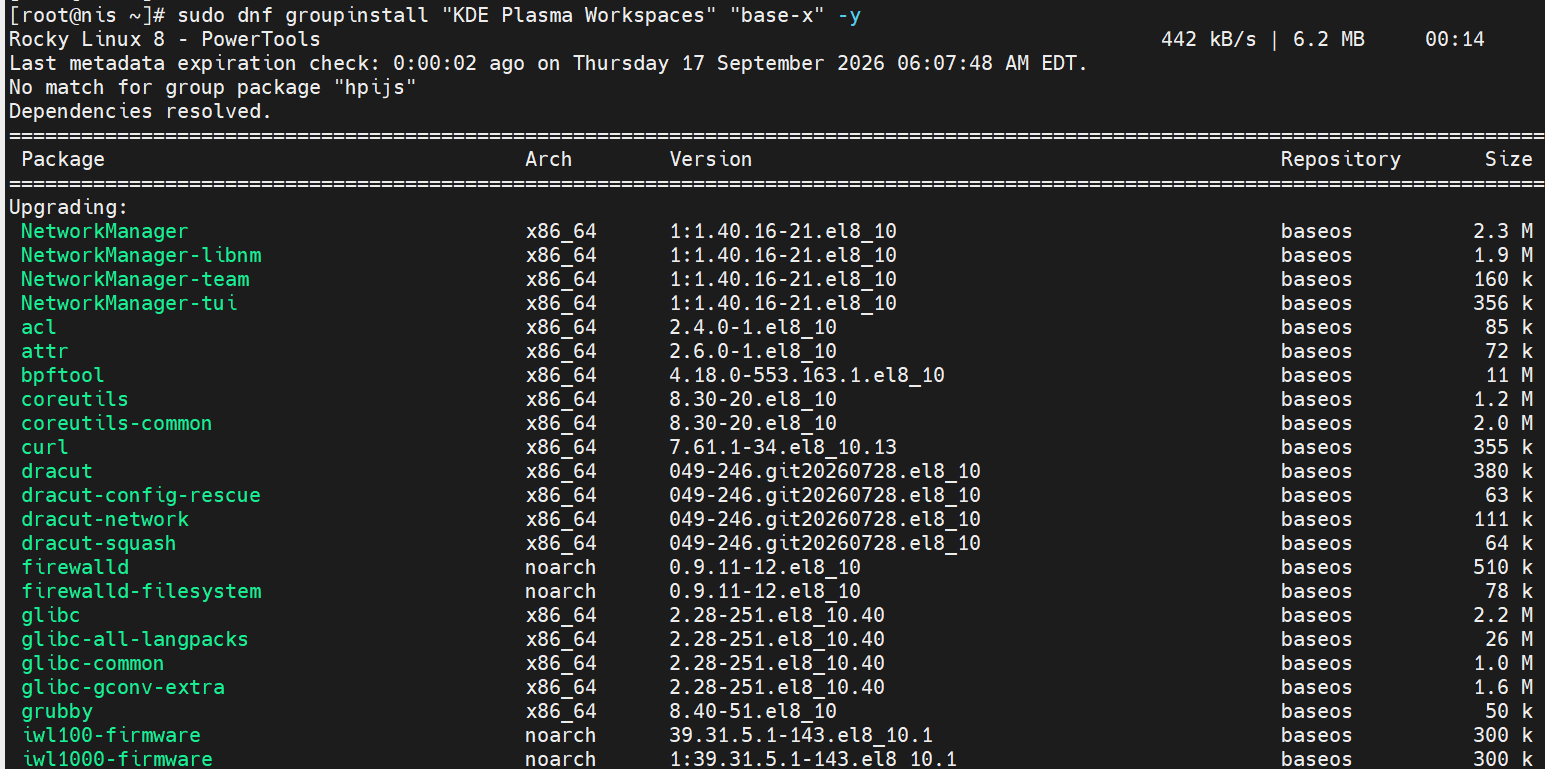
Install the complete KDE Plasma Workspaces environment along with base graphics packages:
sudo dnf groupinstall "KDE Plasma Workspaces" "base-x" -y
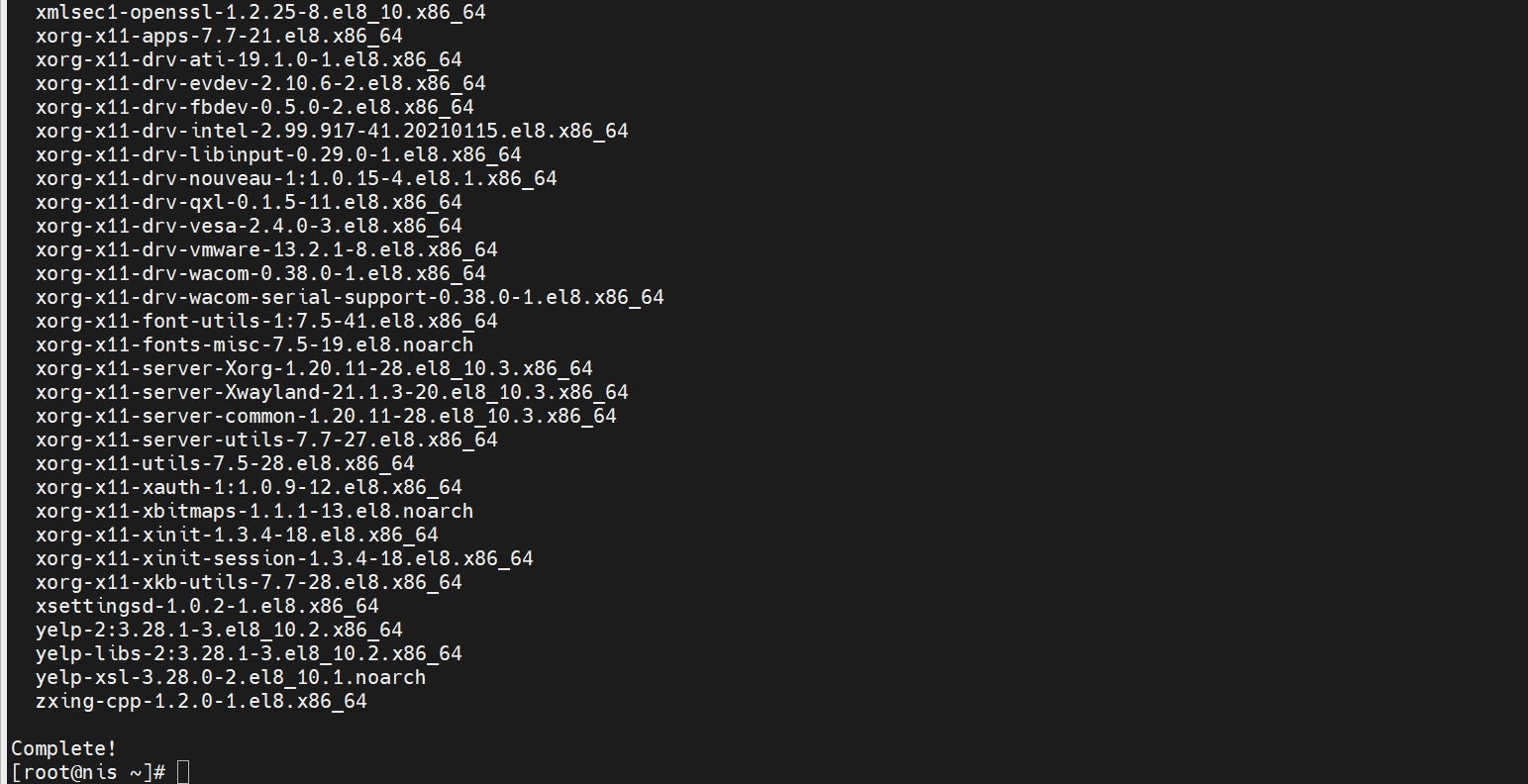
This command installs: - 1025 new packages - 74 package upgrades - Total download size: ~2.0 GB
Installation Progress:
Continuing Installation:
Step 4: Enable SDDM Display Manager
SDDM (Simple Desktop Display Manager) is the default display manager for KDE Plasma:
systemctl enable sddm
SDDM Configuration:

Step 5: Set Graphical Target as Default
Configure the system to boot into graphical mode by default:
systemctl set-default graphical.target
Target Configuration:

Login and Desktop Environment
SDDM Login Screen
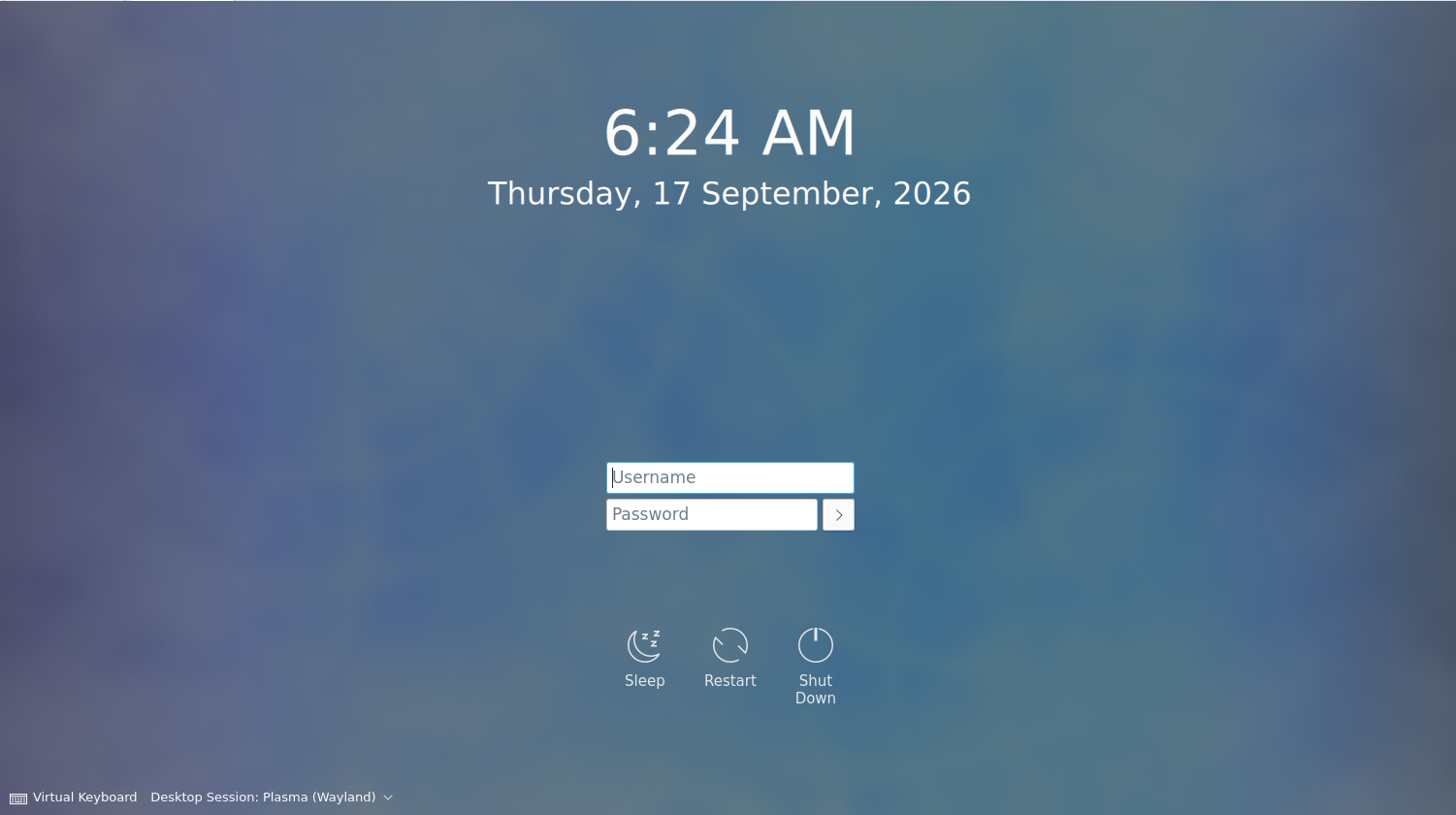
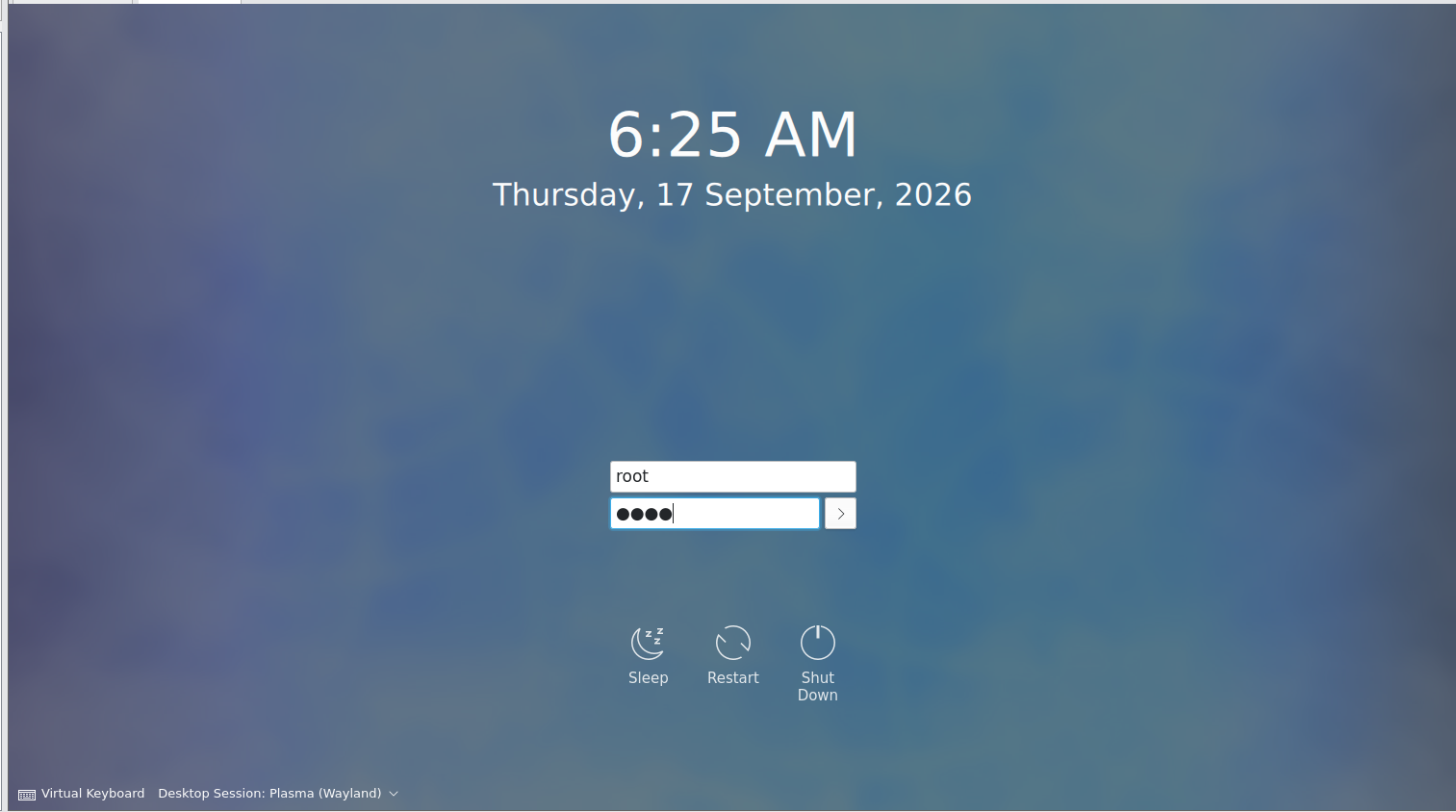
Once the installation is complete and the system has been rebooted, you'll see the SDDM login screen:
SDDM Login Interface:
Authentication
Enter your credentials to log in. The example shows the root user logging in:
Authentication Process:
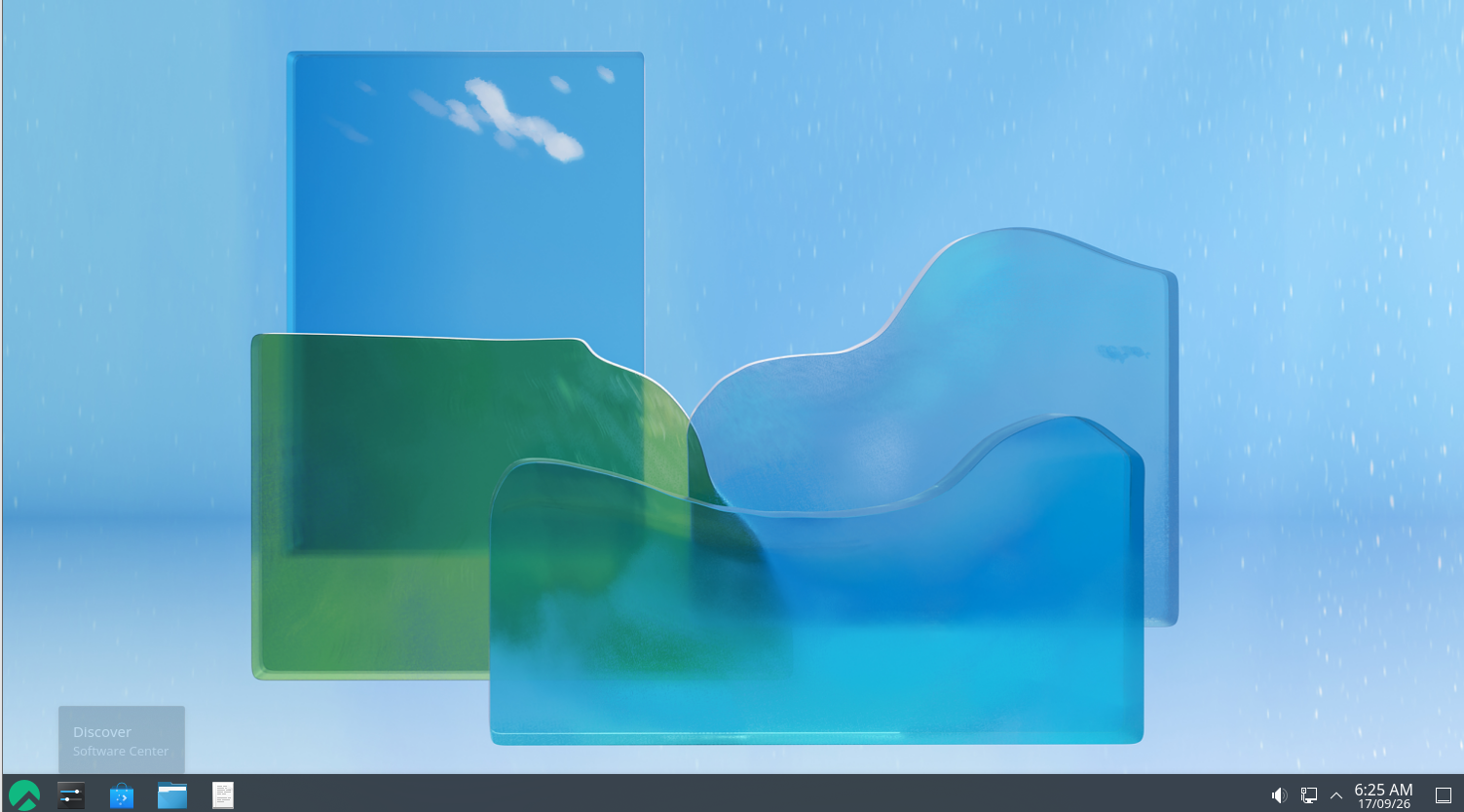
KDE Plasma Desktop Environment
After successful authentication, the KDE Plasma desktop loads:
Desktop Environment Loading:
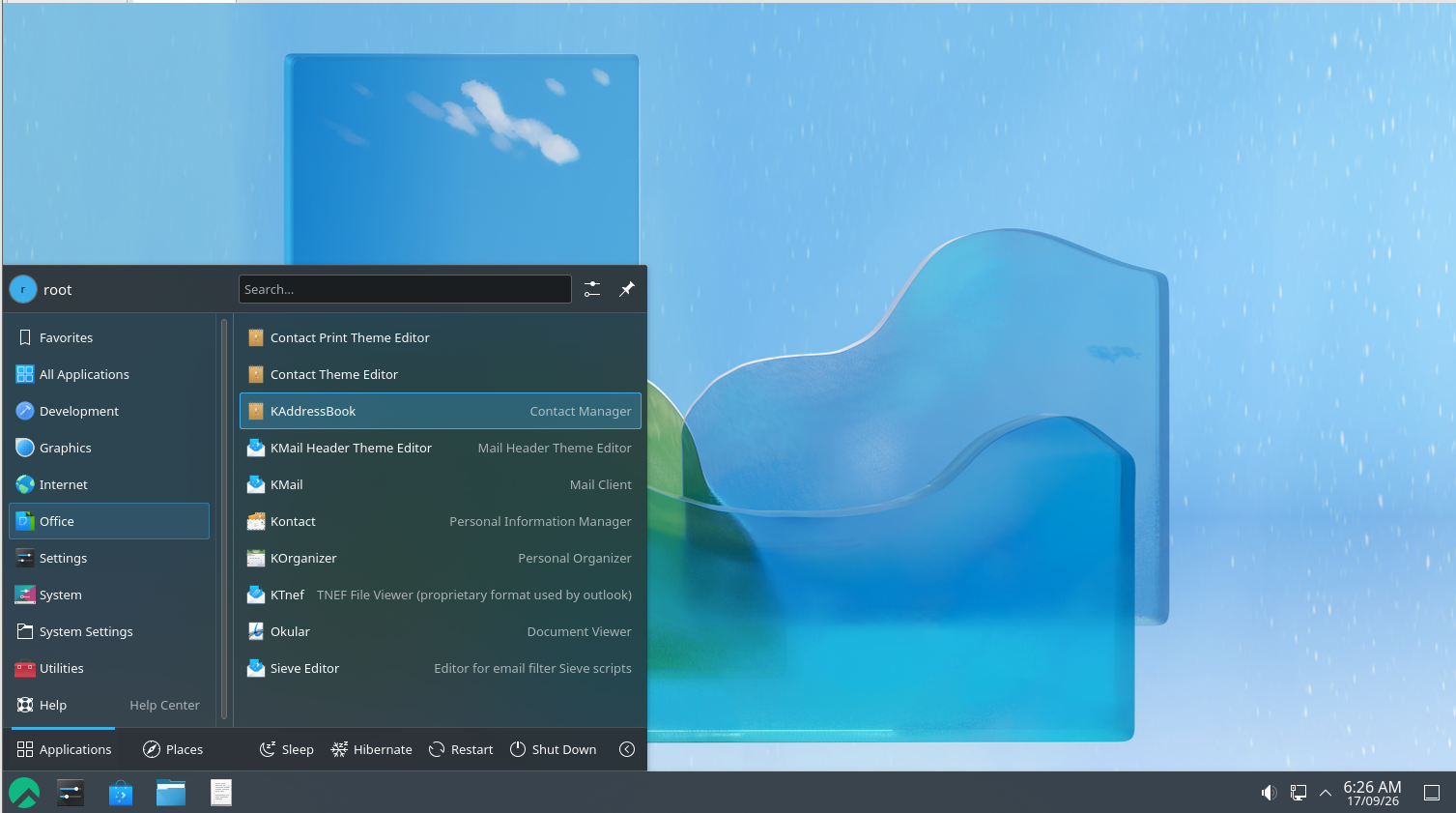
KDE Applications Menu
The full KDE Plasma desktop is now available with access to all installed applications:
Applications Menu:
Installed Components
The KDE Plasma Workspaces installation includes:
Core Components
- KDE Plasma Desktop 5.24.7
- KWin Window Manager (X11 and Wayland support)
- SDDM Display Manager
- Plasma Workspace and utilities
Applications
- Dolphin File Manager
- Kate Text Editor
- Konsole Terminal
- System Settings
- KAddressBook (Contacts)
- KMail (Email Client)
- KOrganizer (Calendar)
- Spectacle (Screenshot Tool)
- Okular (Document Viewer)
- GIMP-related tools
System Tools
- NetworkManager and plugins
- Audio system (PulseAudio)
- Bluetooth support
- Printer management
- Font management utilities
Graphics and Drivers
- Mesa drivers
- X.Org display server and drivers
- GTK themes and integration
- Icon themes (Breeze)
Post-Installation Configuration
1. Update System
dnf update
2. Install Additional Applications (Optional)
dnf install firefox thunderbird vlc
3. Configure Network
Use the Network Manager applet in the system tray to configure your network connection.
4. Install Additional Languages (Optional)
dnf install ibus ibus-libpinyin
Troubleshooting
Display Issues
If the desktop doesn't display properly:
1. Check SDDM logs: journalctl -u sddm -n 50
2. Verify display drivers: lspci | grep VGA
3. Try setting environment variables: export QT_QPA_PLATFORM=xcb
Performance Issues
If the system runs slowly:
1. Disable unnecessary visual effects in System Settings > Startup and Shutdown > Splash Screen
2. Check available disk space: df -h
3. Monitor system resources: Open System Monitor
Audio Issues
If no sound is detected:
1. Install additional audio codecs: dnf install gstreamer1-plugins-ugly
2. Configure PulseAudio in System Settings > Multimedia
3. Check ALSA mixer levels: alsamixer
Performance Optimization
Disk Space
After installation, the system uses approximately 3-4 GB for KDE Plasma and all components.
Memory
KDE Plasma typically uses 300-500 MB of RAM for basic operations.
Boot Time
Expected boot time to desktop: 30-60 seconds (depending on system specifications)
Updating KDE Plasma
To update KDE Plasma components:
dnf upgrade
Additional Resources
- Official KDE Project: https://kde.org
- Rocky Linux Documentation: https://docs.rockylinux.org
- KDE Community Support: https://discuss.kde.org
The KDE Plasma Workspaces installation is now complete. You have a fully functional desktop environment with all necessary tools for productivity and system management. The modular nature of KDE allows for further customization and extension based on your specific needs.
For additional support or customization options, consult the KDE documentation or the Rocky Linux community forums.