NFS Shared Storage Installation & Configuration Guide
Dedicated Disk, LVM, NFS Server (/home) & Compute Node NFS Client
Rocky Linux 8.10 | xCAT-Provisioned Cluster | Lab Validation
Includes every real error encountered and its fix, for reuse on the production cluster
1. Purpose & Scope
This guide documents provisioning a dedicated disk for shared storage, exporting it as an NFS share, and mounting that share as /home on every compute node — so all cluster nodes see the same user home directories, which LDAP-authenticated users and Slurm jobs both depend on.
Scope decision: the cluster's original task list called for separate /scratch and /data NFS exports. After reviewing available disk capacity, the decision was made to use the single new disk as a shared /home instead, since that directly satisfies the requirement that every node see the same home directory content for LDAP users. /scratch and /data can be added later as additional exports on the same or another disk if a dedicated high-throughput scratch area is needed.
2. Environment Overview
| Field | Value |
|---|---|
| Master / NFS server | labtesting.local.com (192.168.245.128) |
| Compute node / NFS client | cnode01 (192.168.245.10), xCAT group: compute |
| New disk | /dev/nvme0n2, 50 GiB, previously unpartitioned |
| Volume group | volume_nfs |
| Logical volume | logical_volume_nfs, 49 GiB (LVM metadata overhead consumes the remaining ~1GB) |
| Filesystem | ext4 |
| Export path | /home, replacing the original local rl-home logical volume as the mount point |
| Export scope | 192.168.245.0/24 (rw, sync, no_root_squash, no_all_squash) |
Phase 1 — Dedicated Disk & LVM Setup (Master Node)
1.1 Identify the new disk
Why this step matters Confirms the new disk (nvme0n2) is visible to the OS and completely unpartitioned before touching it — avoids accidentally partitioning the wrong device.
How to verify nvme0n2 should appear as a 50G disk with no partitions or mountpoints listed.
lsblk
fdisk -l
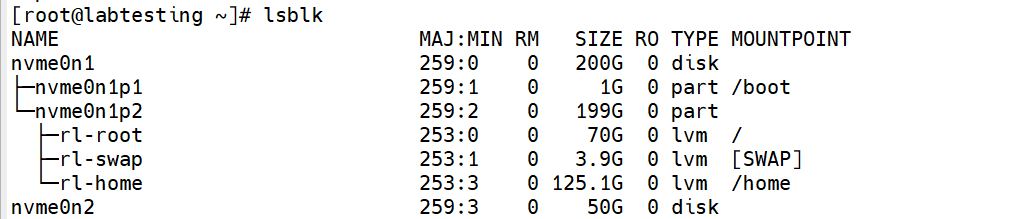
Step 1.1 — lsblk showing unpartitioned nvme0n2
1.2 Partition the disk
Why this step matters A raw disk needs at least one partition before LVM (or any filesystem) can be built on it; using the full disk in a single primary partition is the simplest layout for a dedicated storage volume.
How to verify lsblk should now show nvme0n2p1 as a 50G partition under nvme0n2.
fdisk /dev/nvme0n2
n        # new partition
p        # primary
1        # partition number
<Enter>  # accept default first sector
<Enter>  # accept default last sector (use full disk)
w        # write and exit
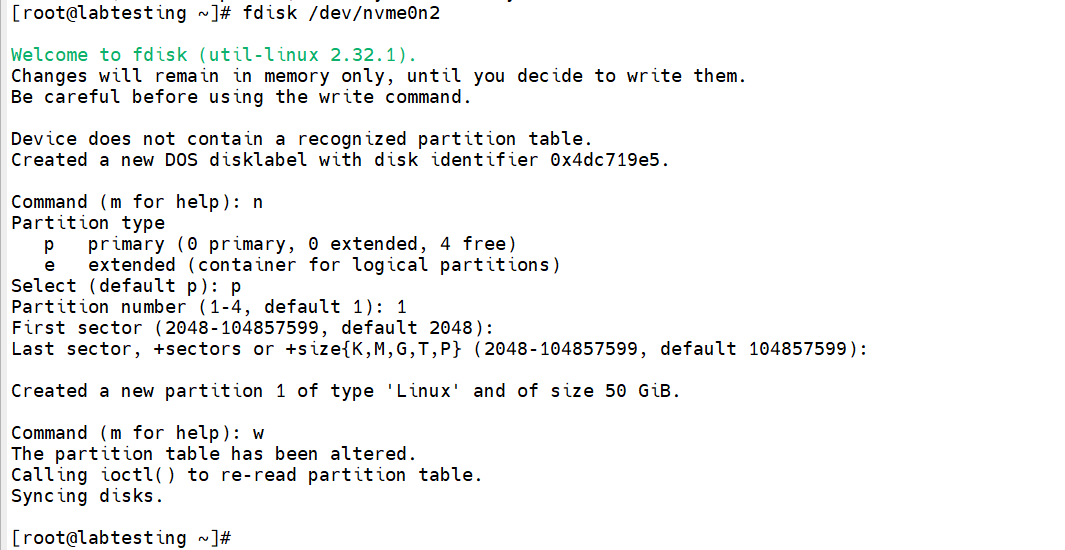
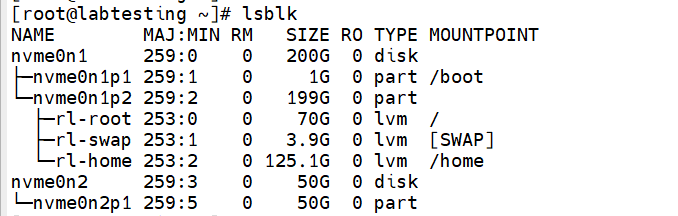
Step 1.2 — lsblk showing nvme0n2p1 partition created
1.3 Create the physical volume, volume group, and logical volume
Why this step matters LVM gives flexibility to resize this storage later (e.g. extend it, or later split off /scratch and /data as separate logical volumes in the same volume group) without repartitioning the disk.
Pitfall we hit lvcreate -L 50G ... failed with Volume group "volume_nfs" has insufficient free space (12799 extents): 12800 required. Root cause: the volume group's usable capacity is slightly less than the raw disk size, because LVM reserves space for its own metadata (physical volume label and metadata areas) on top of the 50GiB. Fix: request a size just under the raw disk size — 49G succeeded, leaving 1020MB unused/reserved in the VG. When sizing LVs in production, always leave a small margin below the VG's reported PSize rather than requesting the full amount.
How to verify vgs and lvs should show volume_nfs with logical_volume_nfs at 49.00g.
pvcreate /dev/nvme0n2p1
vgcreate volume_nfs /dev/nvme0n2p1
lvcreate -L 49G -n logical_volume_nfs volume_nfs
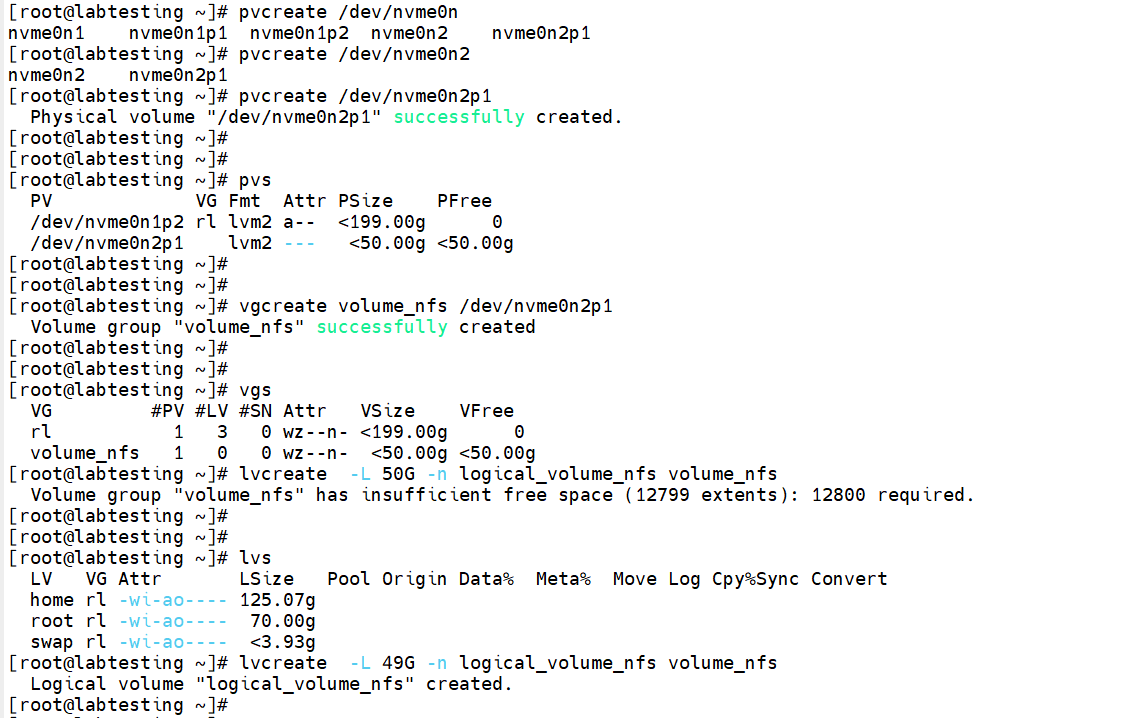
Step 1.3 — vgs/lvs showing volume_nfs and logical_volume_nfs
1.4 Format and mount the new volume as /home
Why this step matters ext4 is a stable, well-tested general-purpose filesystem suitable for home directories; the original local rl-home volume is unmounted first so the new disk can take over the /home mountpoint cleanly.
How to verify df -h should show /dev/mapper/volume_nfs-logical_volume_nfs mounted at /home with ~46G available.
mkfs.ext4 /dev/volume_nfs/logical_volume_nfs
umount /home
mount /dev/volume_nfs/logical_volume_nfs /home
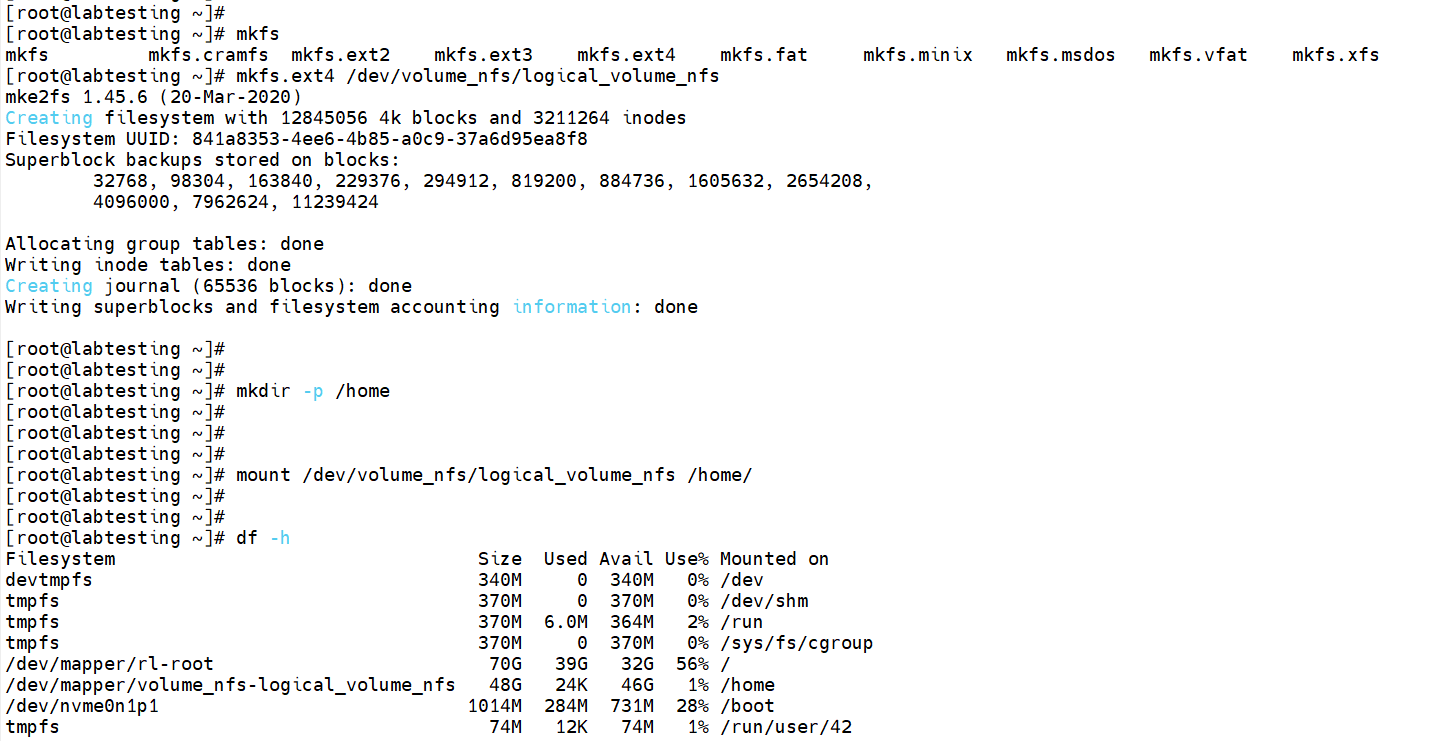
Step 1.4 — df -h showing new /home mount
1.5 Make the mount persistent across reboots
Why this step matters Without an /etc/fstab entry, this mount would be lost on the next reboot and /home would silently fall back to the original local rl-home volume, breaking every user's shared home directory without any obvious error.
Pitfall we hit After editing /etc/fstab, mount -a printed a hint: "your fstab has been modified, but systemd still uses the old version; use 'systemctl daemon-reload' to reload." Fix: run systemctl daemon-reload before mount -a whenever /etc/fstab is edited directly — systemd generates mount units from fstab at boot and caches them, so a manual edit needs an explicit reload to take effect immediately.
How to verify df -h after mount -a should still show the volume_nfs mount at /home (confirms both the manual mount and the fstab-driven mount agree).
blkid /dev/mapper/volume_nfs-logical_volume_nfs
# Add a line to /etc/fstab using the UUID shown, e.g.:
# UUID=841a8353-4ee6-4b85-a0c9-37a6d95ea8f8 /home ext4 defaults 0 2
vi /etc/fstab
systemctl daemon-reload
mount -a

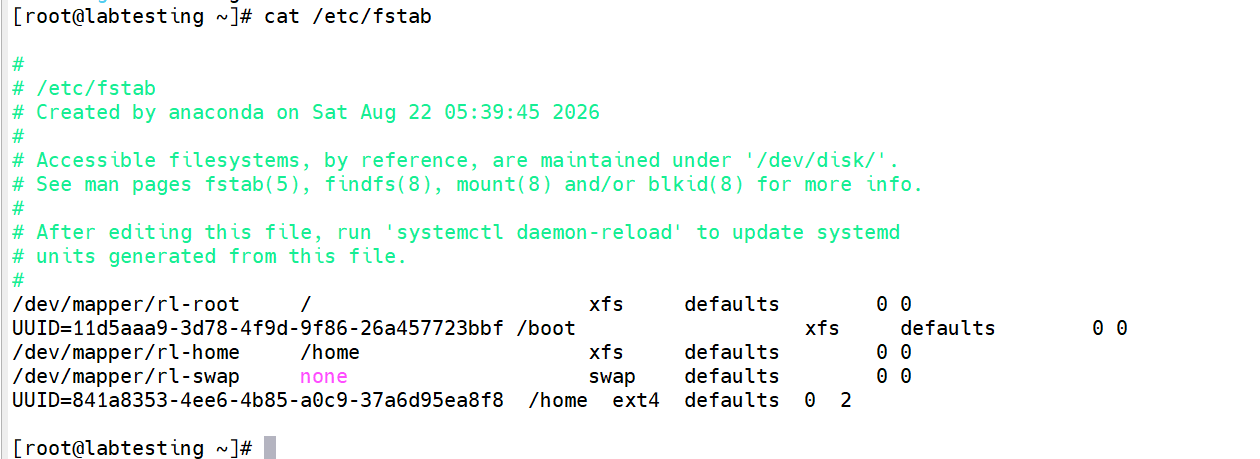
Step 1.5 — df -h confirming persistent mount after mount -a
Phase 2 — NFS Server (Master Node)
2.1 Install NFS server packages
Why this step matters Provides nfsd, exportfs, and the supporting rpcbind/idmapd services needed to share a filesystem over the network.
How to verify rpm -qa | grep nfs-utils
dnf install -y nfs-utils
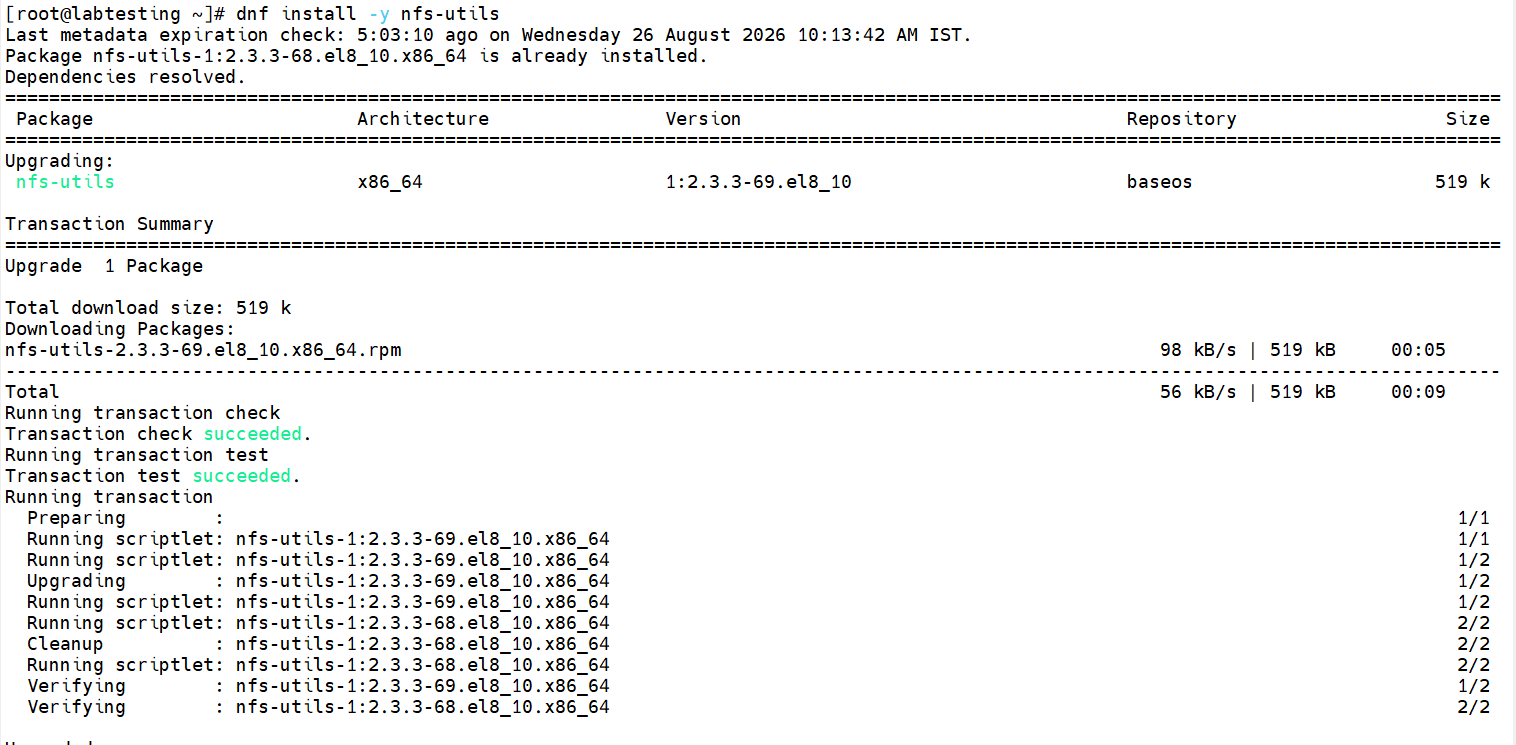
Step 2.1 — rpm -qa confirming nfs-utils installed
2.2 Define the export
Why this step matters rw allows users to write to their home directories from any node; sync confirms writes reach disk before acknowledging them (safer against data loss); no_root_squash lets root on compute nodes (e.g. running postscripts) write as root; no_all_squash preserves each user's real LDAP UID/GID instead of collapsing everyone to nobody — essential since LDAP already assigns consistent identities cluster-wide.
How to verify cat /etc/exports should show the line exactly as written.
cat > /etc/exports << 'EOF'
/home 192.168.245.0/24(rw,sync,no_root_squash,no_all_squash)
EOF

Step 2.2 — cat /etc/exports output
2.3 Apply the export and start services
Why this step matters exportfs -arv re-reads /etc/exports and re-exports everything verbosely, surfacing any syntax error immediately rather than after a service restart.
Pitfall we hit Running export -arv (missing the "fs") hit bash's built-in export command instead of the NFS tool exportfs, producing export: -r: invalid option. Also, systemctl status nfs alone doesn't identify a specific service — Tab-completion revealed the real unit name is nfs-server.service. Fix: always use the full command name exportfs (not export), and target nfs-server.service explicitly when checking status.
How to verify exportfs -v should list /home with the exact options configured. showmount -e localhost should list /home scoped to 192.168.245.0/24.
exportfs -arv
systemctl enable --now nfs-server
systemctl enable --now rpcbind

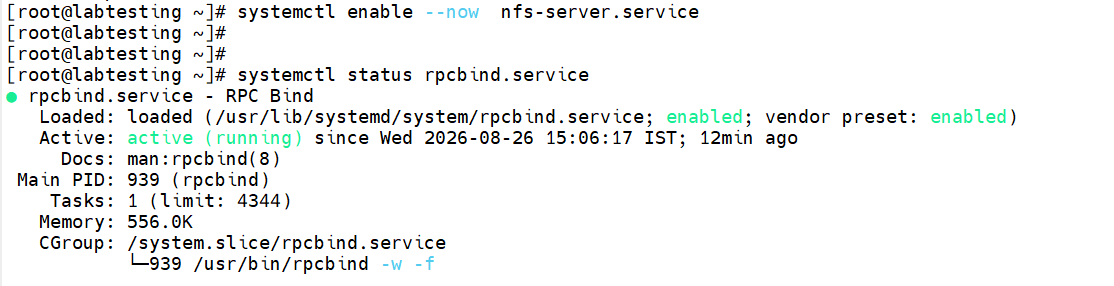
Step 2.3 — exportfs -v and showmount -e localhost output
Phase 3 — NFS Client (Compute Nodes, via Postscript)
3.1 Create the client postscript
Why this step matters The backup step preserves anything already in the node's local /home (e.g. testuser's auto-created home dir from the earlier mkhomedir/LDAP setup) rather than silently hiding it under the new NFS mount. _netdev in fstab ensures the OS waits for networking before attempting this mount at boot.
cat > /install/postscripts/setup_nfs_client << 'EOF'
#!/bin/bash
MASTER_IP=$(getent hosts $MASTER | awk '{print $1}')
dnf install -y nfs-utils

# Back up anything currently in local /home before mounting over it
if [ -d /home ] && [ "$(ls -A /home 2>/dev/null)" ]; then
  mv /home /home.local.bak
  mkdir -p /home
fi

grep -q "${MASTER_IP}:/home" /etc/fstab || \
  echo "${MASTER_IP}:/home /home nfs defaults,_netdev 0 0" >> /etc/fstab

mount -a
echo "NFS /home mounted from ${MASTER_IP}"
EOF
chmod +x /install/postscripts/setup_nfs_client
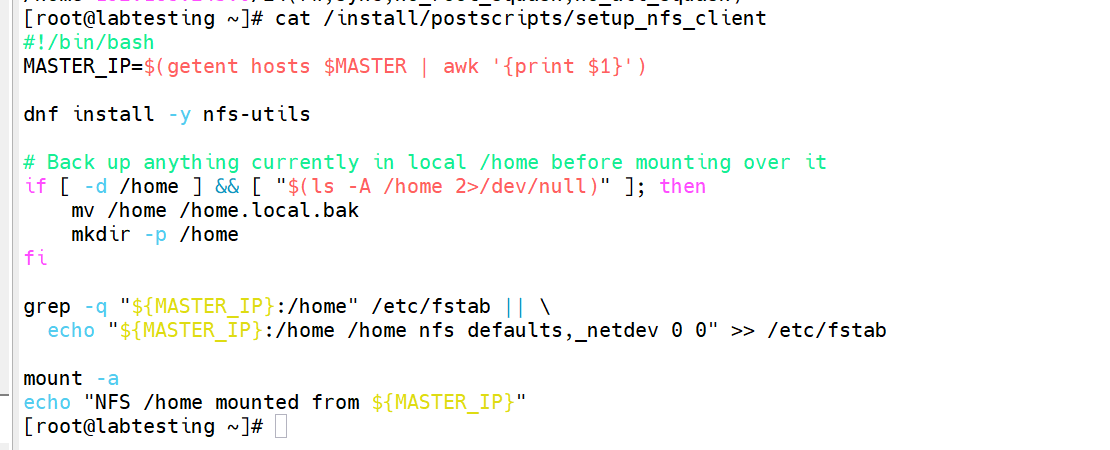
Step 3.1 — postscript file contents
3.2 Push to compute nodes and verify
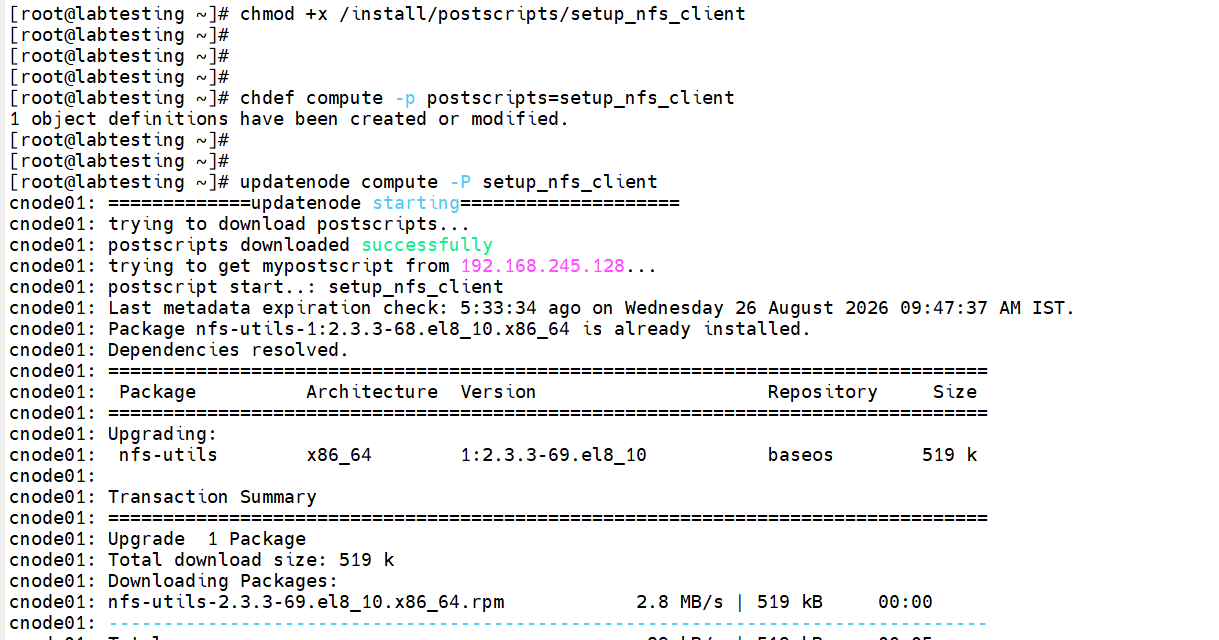
Pitfall we hit A copy-paste of the heredoc content was accidentally appended directly onto the chdef compute -p postscripts= command line instead of being run as its own cat > block first, producing a long garbled multi-line command that had to be cancelled with repeated Ctrl+C. Fix: always run the cat > ... << EOF postscript-creation block as a fully separate command, confirm the file was written (e.g. with cat /install/postscripts/setup_nfs_client), and only then run chdef referencing it by name.
How to verify xdsh compute "df -h" should show 192.168.245.128:/home mounted via nfs, sized ~48G, not the node's local disk.
chdef compute -p postscripts=setup_nfs_client
updatenode compute -P setup_nfs_client
xdsh compute "df -h"
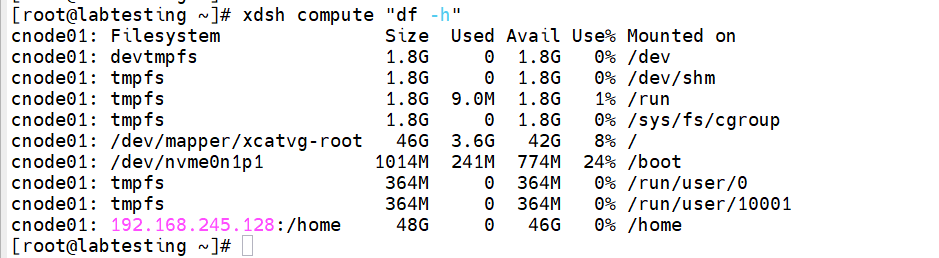
Step 3.2 — xdsh compute df -h showing NFS /home mount
Phase 4 — Verification
4.1 Confirm write visibility between master and compute node
Why this step matters A file created on the master's /home should immediately be visible on the compute node's /home, since both are now the same NFS-backed filesystem, not two independent local disks.
How to verify The compute node's directory listing should show the exact same file, same size, same timestamp as the master.
cd /home
touch formmatser222.txt
xdsh compute "ls -ll /home"

Step 4.1 — matching file listing on master and compute node
Appendix A — Full Issue Log & Fixes
Every real error hit during this lab run, in the order encountered.
| Symptom | Cause | Fix |
|---|---|---|
lvcreate -L 50G: "insufficient free space (12799 extents): 12800 required" |
LVM metadata overhead consumes a small amount of the raw 50GiB disk, so the VG's usable capacity is slightly less than 50G. | Request an LV size just under the VG's reported PSize (49G succeeded) rather than the full raw disk size. |
mount -a hint: "your fstab has been modified, but systemd still uses the old version" |
systemd caches generated mount units from /etc/fstab and doesn't auto-reload on a manual file edit. |
Run systemctl daemon-reload immediately after editing /etc/fstab, before mount -a. |
export -arv: "export: -r: invalid option" |
Typed the bash built-in export instead of the NFS tool exportfs. |
Use exportfs -arv (note the "fs") to re-read and re-export /etc/exports. |
systemctl status nfs — ambiguous, lists multiple related units |
nfs alone isn't a real unit name; several NFS-related services share the prefix. |
Target the exact unit: systemctl status nfs-server.service. |
chdef command got garbled with heredoc content pasted onto the same line |
The cat > ... << EOF postscript block and the following chdef command were pasted together instead of run as separate commands. |
Always run the postscript-creation heredoc as its own command first, confirm the file's contents with cat, then run chdef referencing the filename. |
touch /home/testuser/from_master.txt: No such file or directory |
testuser's home directory was auto-created earlier on the compute node's LOCAL /home (before NFS took over that mountpoint), so it doesn't exist on the new shared master-side /home. |
Either have testuser log in again so mkhomedir creates it fresh on the shared filesystem, or manually create it once: mkdir /home/testuser && chown testuser:hpcusers /home/testuser && chmod 700 /home/testuser. |
Appendix B — Notes for Production Deployment
- Security:
no_root_squashis convenient for lab testing but lets any compute node's root user write anywhere in shared/homeas root. Revisit before production sign-off — considerroot_squashonce postscripts no longer need root-level writes into/home. - Scope decision: this deployment shares
/homeonly. If the schedule's original/scratchand/datarequirement is still needed (e.g. for large scratch I/O separate from user home directories), add them as additional logical volumes in the samevolume_nfsVG (space permitting) or on a separate disk, each with its own/etc/exportsline and client fstab entry. - Home directory provisioning: with
/homenow centrally shared, confirm the LDAP mkhomedir postscript (or a manual step) runs against the SHARED filesystem for every real user before they first log in — a user's home directory created on a node's local disk prior to the NFS mount will not carry over automatically. - Capacity planning: the
volume_nfsVG has ~1GB unused (reserved by the 49G vs 50G sizing decision). On production disks, plan LV sizes with a similar small margin below raw disk capacity.